
Source stays yours
Write the exact Markdown source with line numbers, wrapping and syntax-aware editing.
Markdown editor
Use a free online Markdown editor with live GFM preview, local drafts and share links. Write CommonMark, publish clean notes and start without an account.
Your Markdown source remains the canonical note. Write in a focused code-aware surface, open a live preview beside it and keep the draft in this browser until you choose to publish. CommonMark and GitHub Flavored Markdown features such as headings, links, tables, task lists, strikethrough and fenced code render clearly, while raw HTML stays disabled in preview and shared views.
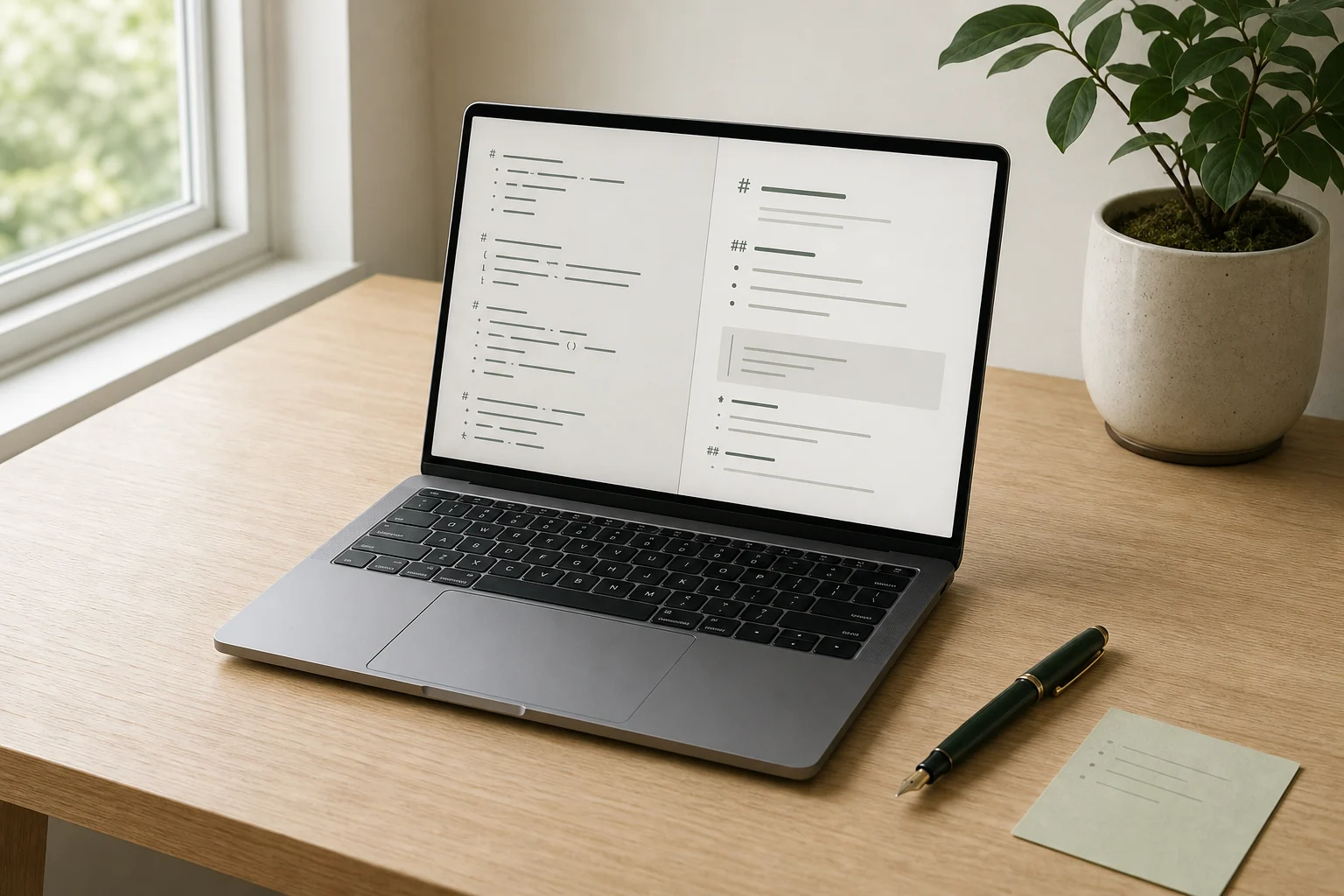
Choose Write for a wide source view, Split for source and preview together, or Preview for a clean reading pass. The online Markdown editor stores this format independently from rich text, so switching modes never performs a silent conversion. When the document is ready, the same publishing workflow creates a read-only link and separate editing access.
Plain text, deliberate sharing
Write the exact Markdown source with line numbers, wrapping and syntax-aware editing.
Move between Write, Split and Preview without changing the stored Markdown or leaving the page. The live preview gives you a readable check while the source remains canonical.
Publish without an account or save to an optional cloud workspace. Share the read link first, and create separate editing access only for a trusted collaborator. Password and expiry controls remain available.
A complete Markdown workflow
A useful online Markdown editor must do more than colour punctuation. It should protect the source, make rendering easy to inspect, support familiar portable syntax and connect writing to a clear publishing model. The following guide explains how those parts work together in Love Notepad and how its anonymous and optional-account modes differ.
A source-first Markdown editor treats the plain-text document as the real work, not as an intermediate format hidden behind buttons. Every heading marker, list prefix, link destination and fenced code block remains visible and editable. This makes Markdown useful for technical notes, documentation outlines, changelogs, study material and any draft that may later move into another tool. Love Notepad keeps line numbers, wrapping and syntax-aware editing close to the text without turning the screen into a dense development environment.
The online Markdown editor also keeps Markdown separate from the rich text draft. Switching formats opens the draft that belongs to that mode rather than performing an automatic conversion. That boundary prevents silent data loss and preserves details that do not map cleanly between document models. If you began a checklist in Markdown, it remains Markdown when you return. If you also keep a rich text note, that content remains independent.
Markdown is compact because the source uses punctuation to describe structure. That efficiency can make a long document harder to scan before you know the syntax well. The live Markdown preview solves that problem without taking ownership away from the source. Split view places the editable text beside the rendered result, so a heading, table, task item or code block can be checked as soon as it is written.
Write view is better when you want maximum room for source, while Preview view is useful for reading the document as a recipient will see it. Moving between these views changes only the workspace layout. The free Markdown editor does not replace the stored source with generated markup, and the preview never becomes a second document that can drift away from what you typed. That makes revision predictable even when a note grows across many sections.
The Markdown editor follows CommonMark for the core language and supports practical GitHub Flavored Markdown additions. Tables organize compact comparisons, task lists track work, strikethrough records a changed decision and fenced code blocks preserve examples. These features cover the structures people commonly expect from an online Markdown editor without adding a proprietary syntax that would make the source difficult to reuse elsewhere.
Portability still depends on writing clear source. Prefer descriptive link text, meaningful headings and short code fences with an appropriate language marker. Keep tables narrow enough for smaller screens and use task lists for real actions rather than decoration. The preview helps identify structural mistakes, but the text should remain understandable in a plain-text file too. That balance is what makes Markdown valuable for both quick notes and durable documentation.
An unpublished Markdown draft stays in the current browser until you explicitly publish it. Publishing creates a durable note page that renders the Markdown for readers instead of exposing the editing surface. The normal share link is read-only. Separate editing access can be kept for yourself or sent to a collaborator who should be able to revise the note, change protection settings or delete it.
The anonymous workflow is convenient, but it has a real trade-off: a lost edit link cannot be recovered. A verified account adds an owner cloud directory and lets the owner create a replacement collaboration link, but exports still matter for important Markdown. Store editing access appropriately, use an expiry when a note should not remain available indefinitely and add optional password protection when published viewing needs another gate.
A portable note starts with understandable source. Use one H1 for the document title, arrange later headings in order and write link text that explains its destination. Add alternative text when an image carries meaning, keep paragraphs reasonably short and introduce a code sample before the fence begins. These habits improve both the plain Markdown and the rendered reading view. They also make a shared note easier to navigate with a keyboard or assistive technology.
Before publishing, read the Preview view from top to bottom and check the link as a recipient would. Export the Markdown file when the source belongs in a project, archive or versioned folder. Print or download a text copy when that format better matches the audience. An online Markdown editor should make these exits ordinary, because the document is more valuable than the tool that created it. Love Notepad keeps export close to the editing workspace for exactly that reason.
Quick syntax map
Use familiar, portable syntax for headings, emphasis, tasks, code, tables and links. The preview follows CommonMark with GitHub Flavored Markdown additions, so the source remains readable in plain text while the rendered note gains a clear document hierarchy.
# Heading**Bold**- [ ] Task```js| Table |[Link](https://)Markdown editor questions
The Markdown editor follows CommonMark and adds useful GitHub Flavored Markdown behavior. You can write headings, paragraphs, emphasis, links, blockquotes, ordered and unordered lists, task lists, tables, strikethrough, inline code and fenced code blocks. The syntax panel on this page provides a compact starting map, while the live preview lets you check the result without replacing the source.
Yes. Select Split to keep the Markdown source on the left and the rendered document on the right. Write shows a larger source surface, while Preview gives the rendered note the full workspace. Changing views does not rewrite the Markdown, so you can inspect formatting without losing comments, spacing or the exact text you entered.
Raw HTML is not rendered by the preview or public note view. This keeps shared output within a controlled set of Markdown elements instead of turning every note into an arbitrary web page. Use Markdown headings, links, tables, code and other supported syntax when you need structure.
No. An unpublished Markdown draft stays in this browser on the current device and is sent only after you choose Publish. This local draft remains device-specific even if you also use an optional account, so export important work or create a cloud note when you need cross-device access.
Yes. Publishing creates a normal read-only link and separate editing access. Readers see the rendered Markdown document without the source editor. You can also add a password, choose an expiry, print a clean version or download the canonical Markdown source from the editing workspace.
The editor is already waiting at the top of this page. Start with plain text, check the live preview and publish only when the Markdown note is ready to share.
Return to the Markdown editor →